Header
The header of the Session Inspector contains various items that are key to interacting with the device itself, or the application source.

Device System Controls
If using the Inspector with the XCUITest, UiAutomator2 or Espresso drivers, the first item group in the header provides functionality specific to the device under test. The available items generally correspond to a hardware button on an Android, iOS, iPadOS, tvOS or watchOS device:
- Android: back / home / app switcher
- iOS/iPadOS/tvOS: buttons dropdown / Siri
- The buttons listed in the dropdown correspond to values supported by the XCUITest driver's
mobile: pressButtonexecute method. The Inspector filters these only by the device category and OS version. - The Siri button will open a prompt for input text, which will be used as the Siri command. Please note that the command will not work if Siri is disabled.
- The buttons listed in the dropdown correspond to values supported by the XCUITest driver's
- watchOS: buttons dropdown / Digital Crown rotation / gestures dropdown / Siri
- Digital Crown rotation is based on the XCUITest driver's
mobile: rotateDigitalCrownexecute method - Gestures listed in the dropdown correspond to values supported by the XCUITest driver's
mobile: performHandGestureexecute method
- Digital Crown rotation is based on the XCUITest driver's
Driver-Specific Controls
Certain header items correspond to driver-specific functionality, and are only shown in a session for that driver.
Display Switcher
Note
This functionality is only supported for the UiAutomator2 driver 6.6.0+, on devices
running Android 11 or newer.

The display switcher allows selecting the currently active device display. Pressing the multi-display button will trigger discovery of available displays, and a new dropdown will be created, listing all discovered displays.
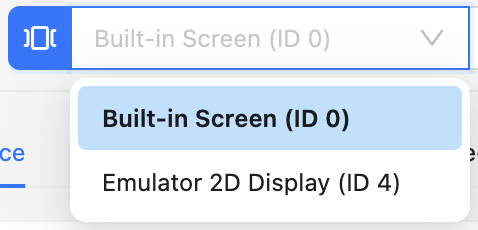
Selecting a different display in the dropdown will automatically switch the screenshot and app source to those of the new display. Most screenshot and element interactions will work as normal, though some functionality will still only target the default display (such as device system buttons and MJPEG screenshot stream).
Pressing the multi-display button while multi-display mode is active will switch to the default display and hide the dropdown.
Window Switcher
Note
This functionality is only supported for the UiAutomator2 driver.

The window switcher allows changing the strategy for determining the active application window. Pressing the button will reveal a new dropdown with 3 options.
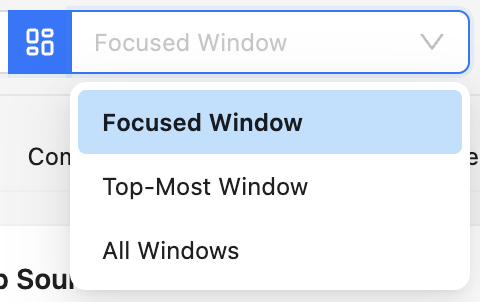
- Focused Window: the default strategy used by the driver
- Top-Most Window: this strategy selects the window with the highest Z-order as the active one. The
top-most window is often the same as the focused window, but may be different for multi-window
apps, or devices with multiple displays. This strategy corresponds to the
enableTopmostWindowFromActivePackagedriver setting being set totrue. - All Windows: this strategy includes all accessible windows in the page source. It corresponds to the
enableMultiWindowsdriver setting being set totrue.
Refer to the UiAutomator2 Multi-Window Testing guide for more information.
Pressing the window switcher button while the dropdown is visible will revert to the default focused window strategy and hide the dropdown.
Subdriver Buttons
Note
This functionality is only supported for the Espresso driver.
The subdriver buttons allow changing the currently active subdriver. Refer to the Espresso driver documentation for more details.
Context Switcher
The context switcher button group allows changing to a different application context. By default, the Inspector works in native mode, and makes no attempts to discover other contexts. Pressing the globe icon will switch to hybrid mode, and the Inspector will start the context discovery process.
If no additional contexts are found, the button group will show a new yellow warning icon, which in turn will show this explanation upon mouseover.
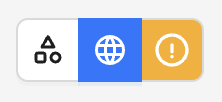
However, if the Inspector does discover more contexts, a new dropdown will appear. There will also be a new blue icon, which will show further information upon mouseover.

The current context can now be switched by selecting the new context in the dropdown.
Note
The Inspector does not automatically switch the current context if a new one is discovered. This must be explicitly done using the dropdown.
Toggle Automatic Source Refresh


Info
This button is only visible when using MJPEG screenshotting capabilities like
appium:mjpegServerPort.
This button allows to disable or re-enable refreshing the application XML source, when executing actions that normally trigger a refresh (these are listed in the Source tab page). While automatic refresh is disabled, the only way to refresh the source is by using the Refresh button.
Disabling automatic refresh can be useful while interacting with the device through the screenshot, in situations when the application source is not important. If the XML source is complex and takes some time to retrieve, disabling its retrieval allows for more seamless device interaction.
Refresh Source & Screenshot

This button triggers a manual refresh of the application screenshot and source, thereby retrieving the latest data.
Search for Element

This button opens a new modal window, which can be used to search for elements within the current application XML source. Searching requires providing the element details:
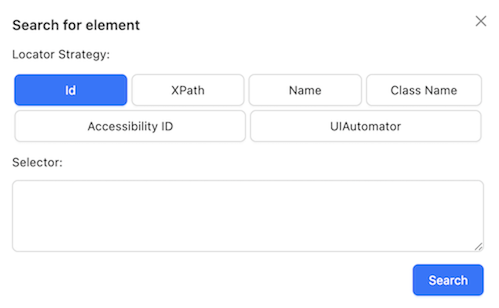
There is a choice of multiple locator strategies that can be used during search. Different drivers support different locator strategies, and the Inspector will try to hide strategies that are not supported by the current driver.
After selecting the locator strategy, entering the selector string, and pressing Search, the results screen is shown.
If one or more elements are found, the Inspector will list the element count, time taken, and a list of selectable element IDs:
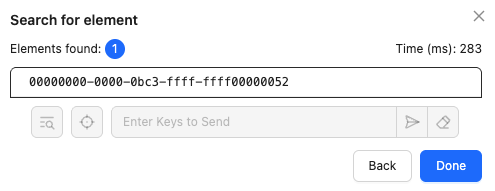
Selecting any element enables the element action items:
| Item | Description |
|---|---|
 |
Attempt to select the element in the application source. Note that this may not work if the element ID has changed. |
 |
Tap the element |
 |
Enter text to send to the element, or clear its text |
Toggle Recorder


This button allows to enable or disable recording of various user interactions with the application, and translate them into code that can be used with various Appium clients.
Interactions that can be recorded include:
- Actions for a specific element (tap/send keys/clear)
- Generic tap/swipe actions on the application screenshot
- Mobile device system actions
- Driver commands
Note
Recording of custom gestures is not currently supported.
While recording is enabled, the Recorder tab contents are automatically populated with Appium client code for all supported interactions.
Reload on Disconnect

This button controls the ability to automatically reload the session if the device under test temporarily disconnects. The session reload is triggered upon any interaction with the Appium session (selecting an element, interacting with the screenshot, searching for elements, etc.) that returns a failed response. Since such a response is not guaranteed to be caused by a disconnected device, this functionality is disabled by default.
Detach from Session

This button disconnects the Inspector from the active session and returns to the Session Builder, but the session itself is not deleted, and remains running on the Appium server. This approach may be useful if you are attaching to an existing session mid-test and want to resume the test afterwards, or if you want to reuse the session later.
Quit Session

This button deletes the active session and returns to the Session Builder.